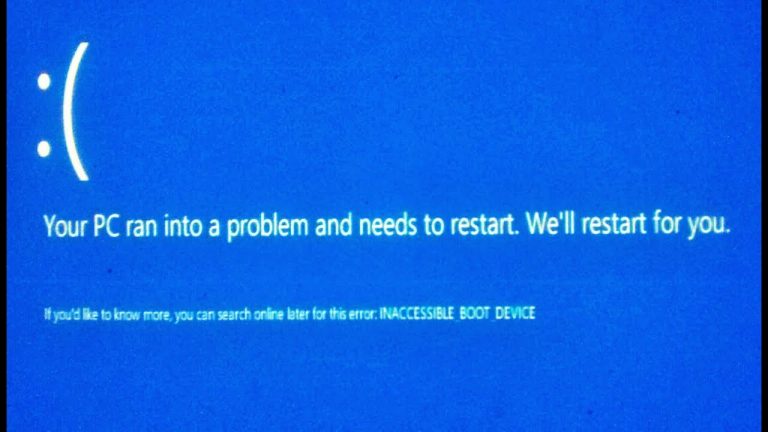
The Problem
After a routine Windows Update, my PC greeted me with the dreaded blue screen of death displaying the INACCESSIBLE_BOOT_DEVICE error. The culprit turned out to be a faulty AMD SCSI adapter driver (version 9.3.0.221) that was automatically distributed through Windows Update.
Standard troubleshooting attempts all failed: startup repair, system image recovery, system restore, and memory diagnostics produced no results. The issue was affecting multiple users who received the same driver update.
The Solution
The fix involves accessing the Windows Recovery Environment and using DISM commands to remove the faulty driver. Here's the step-by-step process:
Step 1: Access the Recovery Environment
After three failed boot attempts, Windows will automatically enter the recovery environment. From there, navigate to Troubleshoot → Advanced Options → Command Prompt.
Step 2: Locate Your Windows Drive
In the recovery environment, drive letters may differ from normal. Use the Dir command with different drive letters to find your Windows installation:
Dir C:\
Dir D:\
Dir E:\
Look for the drive that contains your Windows folder.
Step 3: List Installed Drivers
Once you've identified the correct drive letter, list all third-party drivers:
Dism /Image:D:\ /Get-DriversReplace D:\ with your actual Windows drive letter.
Step 4: Identify the Faulty Driver
Look through the output for a driver with these characteristics:
- Original file name:
rcbottom.inf - Class name:
SCSIAdapter - Provider: AMD
Note the oem number assigned to this driver (e.g., oem0.inf, oem1.inf, etc.).
Step 5: Remove the Driver
Remove the faulty driver using DISM:
Dism /Image:D:\ /Remove-Driver /Driver:oem0.infReplace oem0.inf with the actual OEM number you found in the previous step.
Step 6: Prevent Reinstallation
After your system boots successfully, prevent Windows from reinstalling the problematic driver:
- Open Device Manager
- Find the AMD SCSI adapter under storage controllers
- Right-click → Properties → Driver tab → Roll Back Driver
Key Takeaways
- Consider disabling automatic driver updates in Windows to prevent this from happening again
- Always maintain a bootable Windows USB drive for emergencies
- Community forums like Reddit often provide faster solutions than official Microsoft support channels